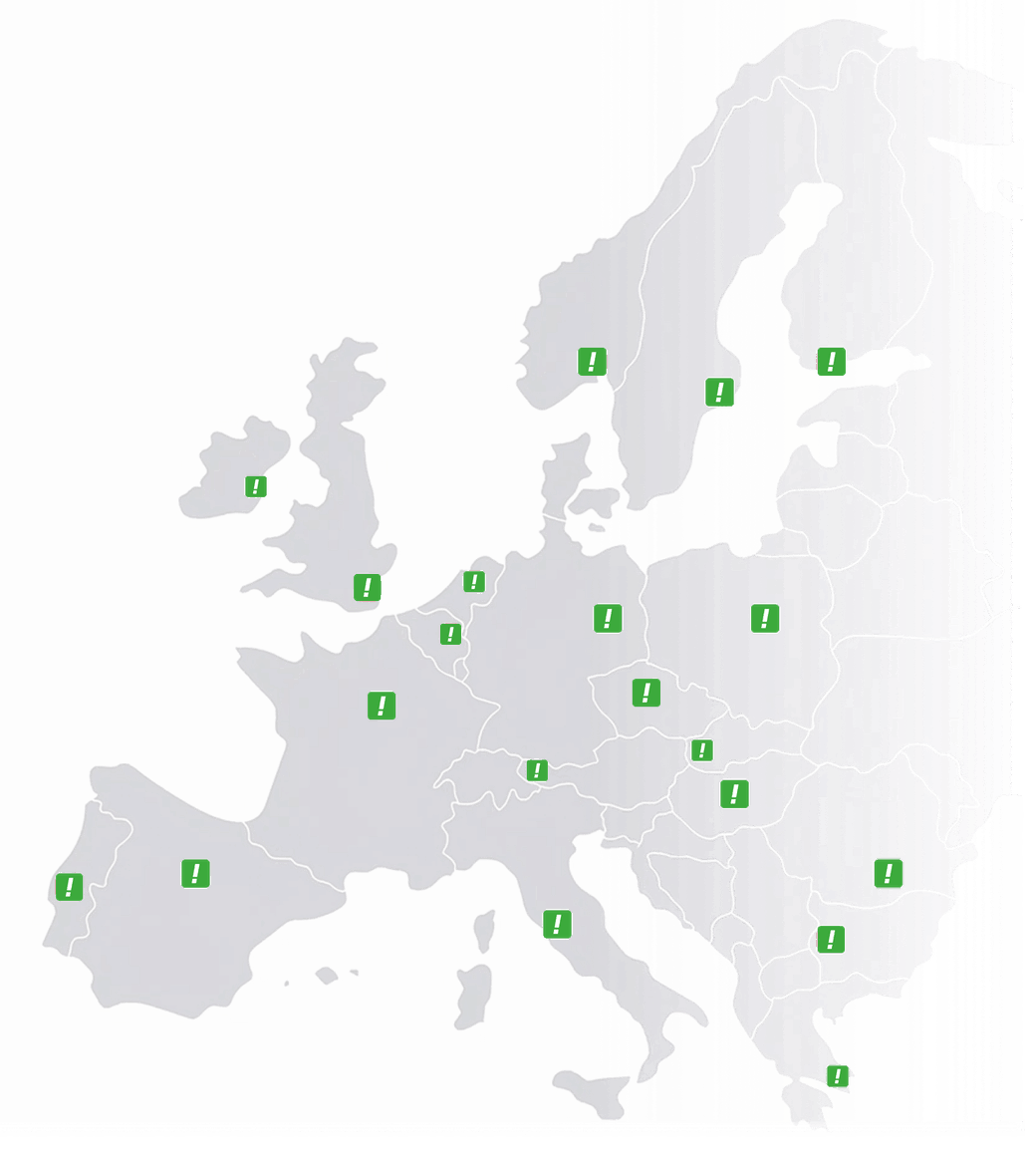
Netherlands
 Belgium
 Denmark
 Germany
 France
 United States
 Austria
 UK
 Spain
 Italy
The text-to-speech assistant lets you create voice recordings by typing your text. Choose a voice and a language, and the assistant creates an audio file that you can use anywhere in your phone system.
How it works
- Go to the text-to-speech assistant in your dashboard.
- Type the text you want spoken.
- Choose a voice and language.
- The assistant creates an audio file and gives you a unique 5-letter code (for example XUIUD).
You can create as many recordings as you need, and each one gets its own code. Tip: keep a document on your computer where you note each code and what the recording says, so your recording library is always at hand.
Using your recording
Go to Settings in the dashboard and select the feature you want to add a recording to, for example the welcome message, closed message, voicemail, whisper tone or phone menu. Enter the 5-letter code, and the recording is applied immediately.
If you have created several recordings for the same feature, a dropdown appears so you can switch between them.
More than 99 languages and voices
The text-to-speech assistant offers more than 99 languages and voices. This is useful if you have numbers in several countries and want callers in each country to hear a message in their own language.