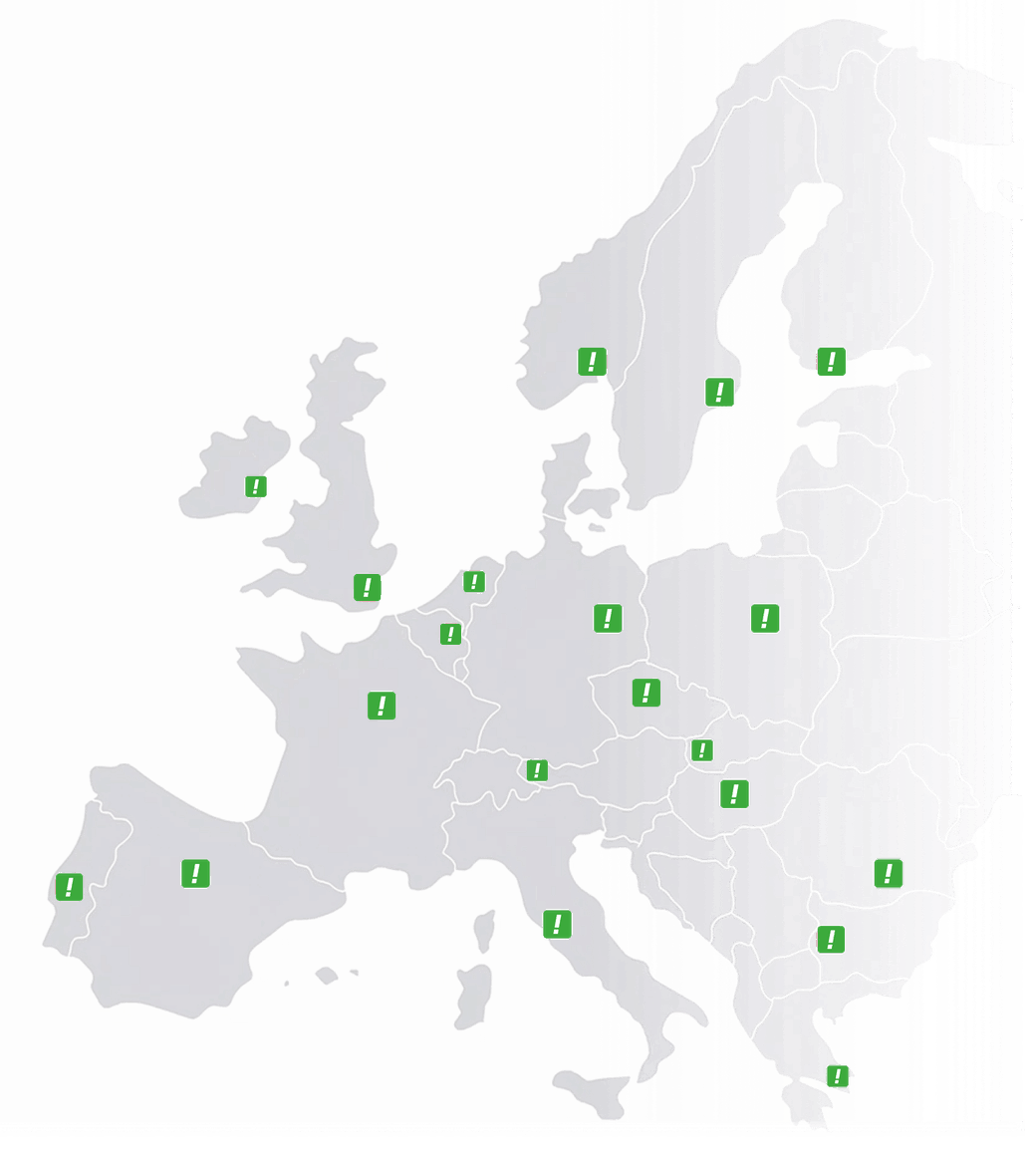
Netherlands
 Belgium
 Denmark
 Germany
 France
 United States
 Austria
 UK
 Spain
 Italy
The Team page in the dashboard shows your virtual call center: everyone who can take calls on your number, in the order their phones ring.
Add every destination where calls can be answered. These can be VoIP devices, existing landlines or mobile phones with any provider and network.
Our phone system offers each incoming call first to the person at the top of the list who is set to active.
If that person doesn’t answer, the phone system offers the call to the next active person in the list.
In this example, the team has 6 users, and 2 of them are active and can take calls at that moment.

Add your logo and profile pictures
Company logo: drag your company logo in PNG format onto the logo area in the top left corner. (1)
Profile pictures (avatars): drag photos of colleagues or icons of your office locations onto the avatars, so everyone can see at a glance who is in the virtual call center. (2)
Add or change users
Email support@callfactory.co the usernames and devices you want to add to your virtual call center. Our support team adds or changes them within one business day.
Change the order of incoming calls
Do you want a colleague to receive incoming calls first? Drag that user higher in the list or to the top. (3)
Set yourself to available or unavailable
Going into a meeting or visiting a client? Set yourself to unavailable with the switch next to your name. The phone system then doesn’t offer you any calls until you switch it back. (4)