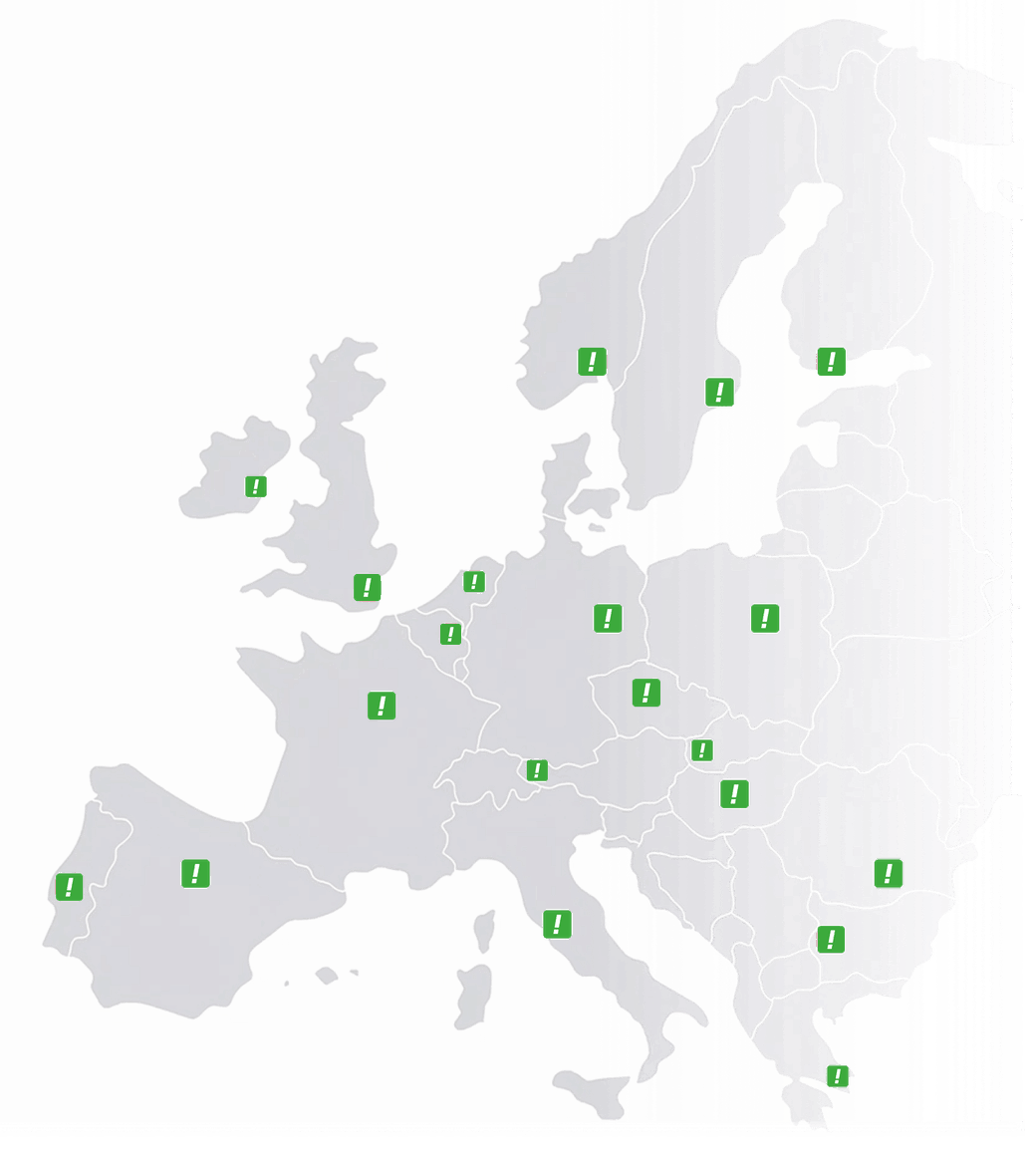
Netherlands
 Belgium
 Denmark
 Germany
 France
 United States
 Austria
 UK
 Spain
 Italy

A customer calls about a quote, but accounting answers. Or the front desk takes a call for a technician who is out on a job. You don’t want to tell the caller to “call back in ten minutes on this other number”. With a call transfer you pass the call to the right colleague while it is still live, and the caller stays on the line.
This guide explains what a call transfer is, the two types of call transfer (warm and cold), how to transfer a call on a desk phone and a softphone, and why a call transfer is different from the call forwarding you set for the whole number.
What is a call transfer?
A call transfer is passing a call that has already started from one person to another. You answer, realize the question is for a colleague and pass the call on. The caller does not hang up, look up another number and start again.
A transfer is not a new call: the caller stays connected, waits on hold for a few seconds and then speaks to your colleague. To transfer calls you need two things: a phone linked to a phone system, and a way to reach your colleague, usually their extension.
On the CallFactory cloud phone system, every colleague has a device linked to the business number: a desk phone, a softphone on the computer or a mobile. Call transfer works between all these devices, also when colleagues work at different locations or from home.
Types of call transfer: warm or cold
There are two ways to transfer a call. Phones use different names for them, but the principle is always the same.
Warm transfer (attended transfer)
In a warm transfer, also called an attended transfer, you speak to your colleague first and then pass the call. You put the caller on hold, call your colleague and tell them in two sentences who is on the line: “I have Ms. Johnson from Northfield Construction on the line, she is asking about Tuesday’s quote.” If your colleague can take the call, you complete the transfer and your line is free.
The advantage is that your colleague already knows who is calling and why, so the caller doesn’t have to repeat the question. If your colleague doesn’t answer or is busy, you notice right away and take the caller back, instead of sending the customer into a void.
Cold transfer (blind transfer)
In a cold transfer, also called a blind transfer, you pass the call without speaking to your colleague first. You press the transfer button, dial the extension and the call goes to them. It is faster, because your line is free immediately.
The risk is that your colleague doesn’t know who is calling, or doesn’t answer at all. Then the call follows their settings, for example voicemail. A cold transfer works well for simple requests and for colleagues you know are available.
Which type to choose
| Situation | Recommended type |
|---|---|
| A customer with a complaint or a complex question | Warm transfer |
| A call for a colleague who may be in a meeting | Warm transfer |
| A supplier asking for accounting | Cold transfer |
| A front desk with many short calls | Cold transfer, to colleagues who are available |
A rule of thumb: if the caller would have to explain everything again, use a warm transfer. If the name of the department is enough, a cold transfer is fine.
How to transfer a call on a desk phone
IP desk phones, such as the Yealink phones many of our customers use at the office, have a Transfer key. On some models it is a physical button, on newer models it is a soft key below the screen.
Warm transfer on a Yealink desk phone:
- Answer the call.
- Press Transfer: the caller is placed on hold.
- Dial your colleague’s number, for example extension 303, and press Send.
- When your colleague answers, tell them who is on the line.
- Press Transfer again: the call moves to your colleague and you can hang up.
Cold transfer on a Yealink desk phone:
- Answer the call.
- Press Transfer.
- Dial your colleague’s extension and press Transfer right away.
The same steps are in the help center guide transferring calls with Yealink. If you are choosing a phone, the desk phone page shows how you link it to your business number.
How to transfer a call on a softphone
With a softphone your computer becomes the phone: you answer with a headset and transfer the call with a click. We provide Linphone, an open-source softphone for Windows, macOS, Linux, iOS and Android, which registers on our platform with the credentials from your dashboard.
An example: Sarah works at the front desk of an accounting firm in Dublin and answers on the softphone. The caller needs payroll, so Sarah selects her colleague Chloe from the contacts in the app, and the call moves to Chloe’s desk phone at the Cork office. The caller hears a short wait and then Chloe. Nobody has to read out a number or call back.
Any device on the number can receive a call transfer: a desk phone, another softphone or a mobile on the mobile network. The caller never knows on which device the call arrives.
Transferring calls on a mobile: call forwarding
On a smartphone, “transfer calls” usually means call forwarding by your carrier: calls to your mobile go to another number before you answer. You switch it on in the phone settings or with a code in the phone app, for example **21*number# to forward all calls on most GSM networks, or *72 on many US landlines and Verizon phones.
All codes, how to switch them off and what forwarding costs are in our guide on call forwarding codes.
Call transfer vs call forwarding: the difference
The two terms are often mixed up, partly because “transfer” is also used for forwarding on a mobile. In a business phone system the difference is clear:
- Call forwarding decides where a call rings before anyone answers. You set it once in the dashboard for the whole number, for example the front desk first, then the mobiles of the team. Everything is on the call forwarding page.
- Call transfer moves a call that is already live, after someone answered. You do it yourself during the call, with the transfer button on your phone or softphone.
- Forwarding on your mobile is your carrier’s service that sends calls to your mobile on to another number, with codes like
**21*.
Forwarding and transfer work together: good call forwarding reduces the number of transfers. If a phone menu sends callers to the right department directly (“press 1 for technical support, press 2 for accounting”), the front desk gets fewer calls to pass on. Call transfer remains useful for everything the menu can’t predict.
Extensions and ring order: how to organize call transfers
To transfer calls quickly, every colleague should be reachable with a short code. Menu choices on our platform are one digit, but on request we set up a phone extension of three or four digits for each colleague or branch, for example to reach every branch behind one number.
Before any transfer, it matters who answers first. In the dashboard you choose the ring order: all at once, one after another always starting with the first, or in turn, so calls are spread fairly. In the team dashboard each colleague sets themselves available or not, so incoming calls only reach people who are working.
Practical tips to transfer a call
- Tell the caller what happens. A sentence like “One moment, I’ll transfer you to my colleague in the warehouse” keeps them from thinking the call dropped.
- Summarize in two sentences. In a warm transfer, name, company and the reason for the call are enough context.
- Don’t transfer into a void. If you don’t know whether your colleague is there, use a warm transfer. For common questions, consider a phone menu ( IVR system) or an AI voicebot that answers by itself and transfers the call when needed.
- Plan for peak times. When everyone is on a call, nobody can take a transfer. With a call queue the caller waits on hold for the first available colleague and hears their position, with hold music you choose.
Call transfer with CallFactory
With CallFactory, call transfer doesn’t need a phone system box (PBX) in the office. On our cloud phone system, call transfer works between all devices linked to the business number. Your team answers on the desk phone at the office, the softphone at home or the mobile in the van, and transfers calls the same way. Outgoing calls from the softphone with your local number show the business number, not a personal one.
Calls on local and national numbers in the 14 European countries where we are licensed are included with normal use. Above normal use you pay €0.10 per minute to mobiles and landlines alike, billed per second with no connection fee. To see how this differs from per-seat pricing, read per-user versus per-minute phone system pricing. The plans with more people on the number:
- Phone System: €25 a month or €250 a year, for up to two people.
- Customer Service: €49 a month or €490 a year, for up to eight people, with a phone menu, call queue and call recording.
For more than eight people we build a custom plan. All details are on the pricing page. A new number is active within one business day, and if you want to keep the number you have, porting it to us is free.